Developer docs
Everything you need to connect Zellwo to your website, your backend and your AI assistant. Every snippet on this page already points at this workspace.
What Zellwo is
Zellwo is an AI support desk and an event-driven CRM. A chat widget answers your visitors from your own catalogue and knowledge base, every conversation becomes a ticket, and the events your site and your backend send move each contact through your CRM.
You connect to it through three doors:
- widget.js in the browser: the chat bubble or search bar, plus
zellwo.event()for analytics. This is the browser SDK; there is no other package to install. JavaScript reference - The REST API from your server: events, contacts, companies, tickets and every other dashboard action, described by an OpenAPI spec you can generate a client from. REST API reference
- The MCP connector for Claude, ChatGPT and Claude Code: the same operations as tools, with the permissions of whoever connects. Connect an assistant
Which flow do you need
Widget only (JS)
widget.js on your pages. Anonymous visitors tracked, returning ones recovered by fingerprint, identity via a userToken your server signs, expiring within 24 hours.
Widget + API
The widget covers anonymous browsing; your backend adds what only it knows (payments, refunds) and passes session_id so both land on one profile.
API only
No widget, so no session_id and no fingerprinting. Every event must carry an email, phone or external_id you already hold. Anonymous traffic is out of scope.
Install the chat widget
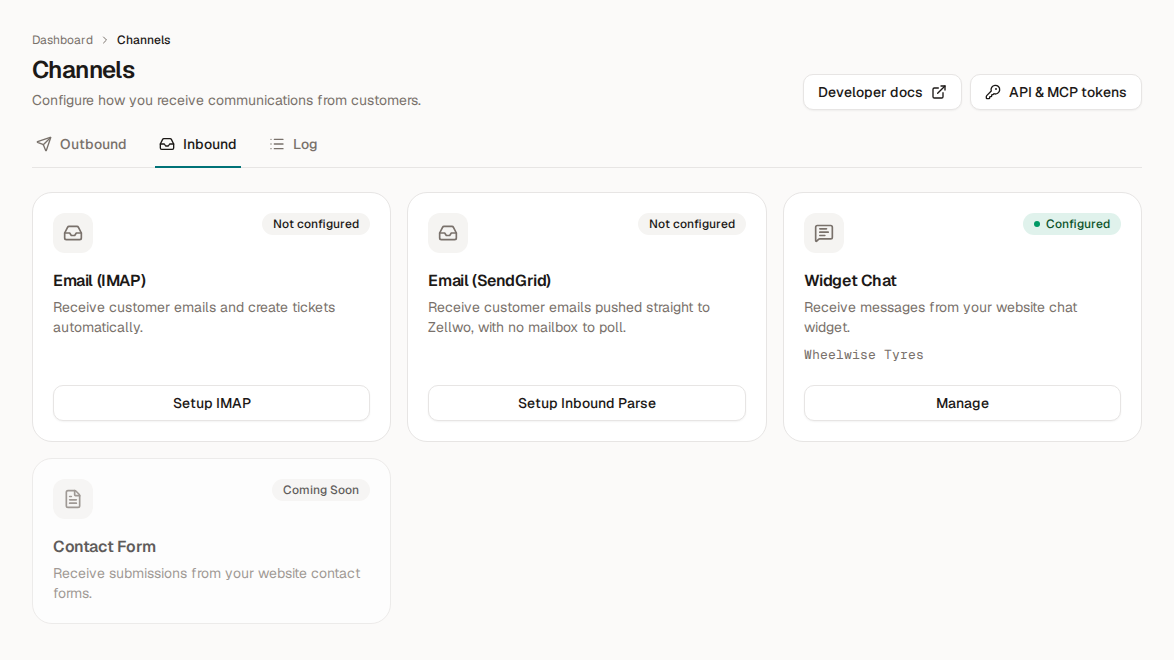
- An owner creates the workspace's widget keys once, on Channels → Inbound → Widget Chat (Create widget keys). The card then shows as configured, with Manage.
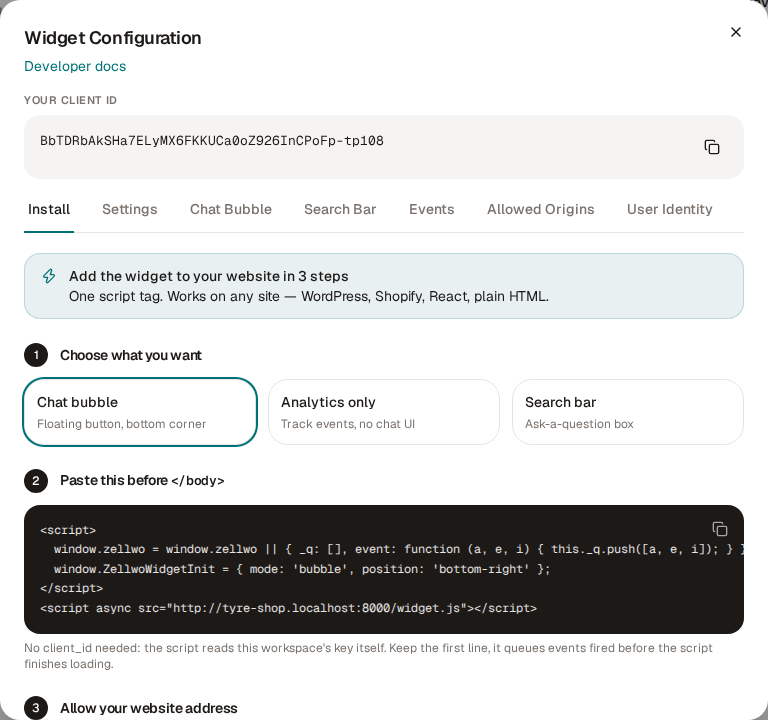
- Paste one of these before the closing body tag on every page. Pick the chat bubble, the search bar, or analytics only (no chat UI):
<script>
  window.zellwo = window.zellwo || { _q: [], event: function (a, e, i) { this._q.push([a, e, i]); } };
  window.ZellwoWidgetInit = { mode: 'bubble', position: 'bottom-right' };
  var zellwoConsent = 'approved'; // wire this to your consent banner; the script loads only when it is 'approved'
  if (zellwoConsent === 'approved') {
    var zellwoScript = document.createElement('script');
    zellwoScript.async = true;
    zellwoScript.src = 'https://zellwo.zellwo.com/widget.js';
    document.head.appendChild(zellwoScript);
  }
</script>
<script>
window.zellwo = window.zellwo || { _q: [], event: function (a, e, i) { this._q.push([a, e, i]); } };
window.ZellwoWidgetInit = { mode: 'search', placeholder: 'Ask us anything…' };
var zellwoConsent = 'approved'; // wire this to your consent banner; the script loads only when it is 'approved'
if (zellwoConsent === 'approved') {
var zellwoScript = document.createElement('script');
zellwoScript.async = true;
zellwoScript.src = 'https://zellwo.zellwo.com/widget.js';
document.head.appendChild(zellwoScript);
}
</script><script>
window.zellwo = window.zellwo || { _q: [], event: function (a, e, i) { this._q.push([a, e, i]); } };
var zellwoConsent = 'approved'; // wire this to your consent banner; the script loads only when it is 'approved'
if (zellwoConsent === 'approved') {
var zellwoScript = document.createElement('script');
zellwoScript.async = true;
zellwoScript.src = 'https://zellwo.zellwo.com/widget.js';
document.head.appendChild(zellwoScript);
}
</script>No client_id is needed: the script reads this workspace's key itself. The first line is a queue, so zellwo.event() calls made before the script has loaded are kept and sent on arrival. React, Vue or Next.js: put it in index.html, not inside a component.
Colours, the welcome preview, product suggestions and pageview tracking are set without code under Channels → Inbound → Widget Chat → Manage. That dialog also holds this snippet on its Install tab.
Allowed origins
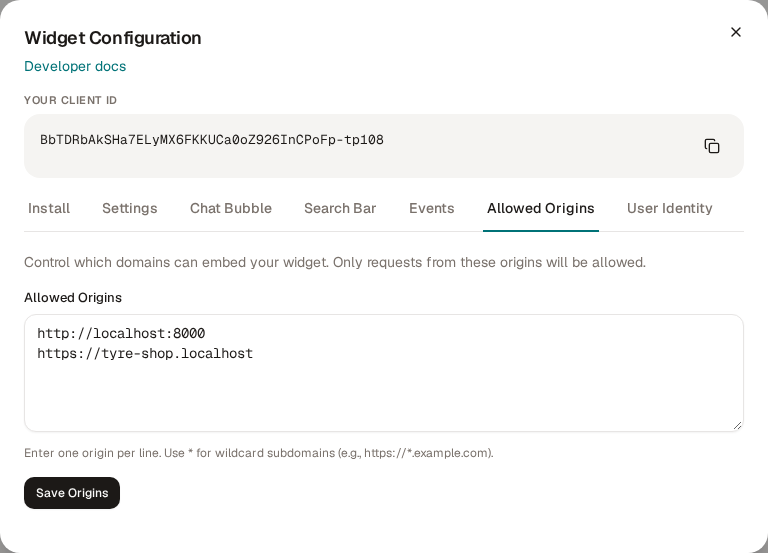
The widget runs only on the addresses you list. Add your live domain, and your local one while developing (for example http://localhost:5173), under Channels → Inbound → Widget Chat → Manage → Allowed Origins. Anywhere else the browser console prints a [Zellwo] warning naming the blocked origin, and nothing is sent: check the console first when nothing arrives.
Identify signed-in users
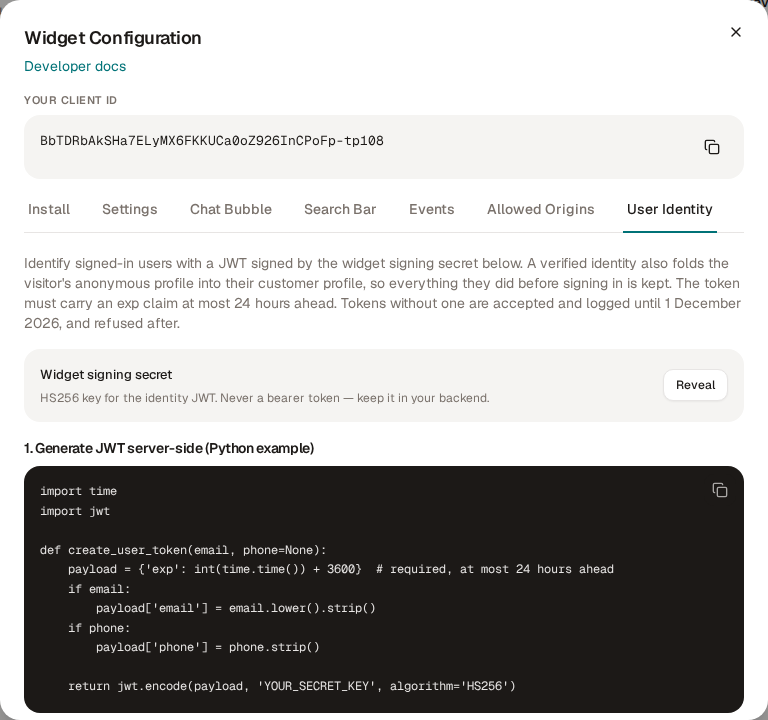
A page cannot be trusted to say who is signed in, so your server vouches for the visitor with a userToken: a JWT signed with HS256 and the widget signing secret, carrying email and/or phone and optionally your own external_id. A verified token writes those onto the contact as verified fields and folds the visitor's anonymous history into their customer profile.
- The signing secret is under Channels → Inbound → Widget Chat → Manage → User Identity; owners only. It is revealed once; after that it can only be rotated. It never goes into page code and is not an API token.
expis required, at most 24 hours ahead; a token expiring later is refused. Tokens withoutexpare accepted and logged until 1 December 2026, and refused after.- Send it once per session, on any page, not only from your login page: a returning visitor arrives already signed in and never passes through it.
Sign on your server, with exp, and print the token into the page for the signed-in visitor:
claims = {'email': user.email, 'exp': int(time.time()) + 3600}  # exp: required, at most 24 hours ahead
token = jwt.encode(claims, ZELLWO_SIGNING_SECRET, algorithm='HS256')
zellwo.event('login', {}, { userToken: '<the token signed above>', firstName: 'Ada' });Signing code for every language is under Events from your server; the claims and platform examples (Django, Next.js, WooCommerce, Shopify) are in the JavaScript reference.
Events from the browser
With the snippet on the page, call zellwo.event(action, extraData, identification) anywhere. Standard names (pageview, register, login, logout, purchase, view_item, add_to_cart, checkout, search, click, form_submit) go as they are; anything else takes the custom: prefix.
zellwo.event('view_item', { product_id: 'SKU-42', product_name: 'Widget Pro', price: 79.99 });
zellwo.event('purchase', { order_id: 'ORD-9821', amount: 129.99, currency: 'EUR' });
zellwo.event('custom:video_played', { video_id: 'demo', seconds: 45 });- Record the first page of a visit is on by default: the script sends one
pageviewfor the page it loads on when the browser had no Zellwo session yet, the landing page a server cannot report. - Send a pageview automatically is off by default. Switched on, the script also records every later page load and client-side route change. Off, call
zellwo.event('pageview')yourself, from your router in a single-page app. Both switches are under Channels → Inbound → Widget Chat → Manage → Events. - Send
order_idwith everypurchase: a second purchase with the sameorder_idfor the same contact is stored once.
Every option, method and event in the JavaScript reference
Events from your server
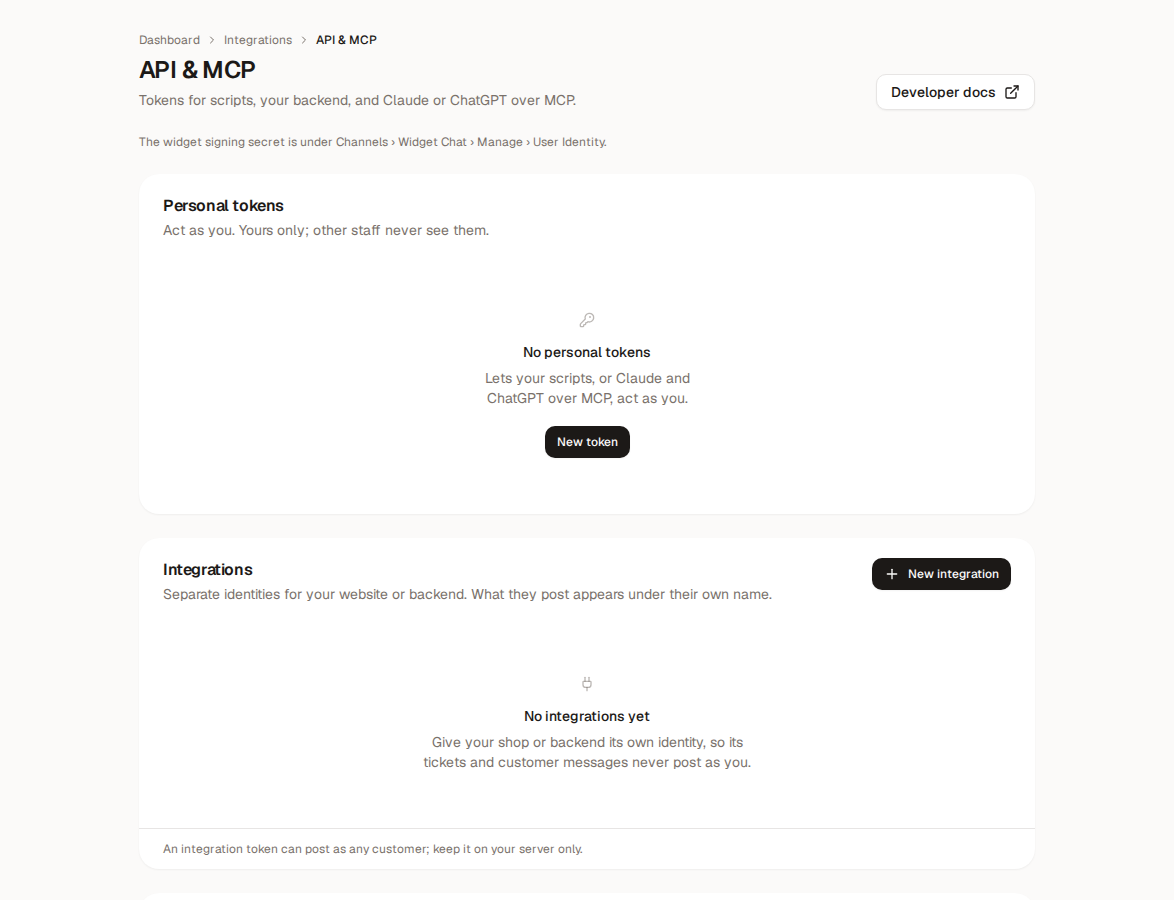
What only your backend knows (a webhook-confirmed payment, a refund, a plan change) goes to POST https://zellwo.zellwo.com/api/analytics/ingest, or /ingest/batch for up to 100 events. Authenticate with a token from Setup › Integrations › API & MCP (an integration for your backend), never the signing secret.
- Read the visitor's session. widget.js stores it in a first-party cookie on your own domain,
zellwo_session_id:<client_id>, so every request to your server carries it. Send it assession_idand the event lands on the profile the browser already built. Match the cookie by prefix and you never hardcode the key. The first request of a visit has no cookie yet; the first-page setting above covers it. - Add what you know.
email,phoneorexternal_idname the person;ipanduser_agentdescribe the visitor instead of your server;company_namecreates and links their company. The first event that carries both the session and the email folds the anonymous profile into the customer's. Your server is authenticated, so it needs no userToken for this. - Skip what you cannot identify. An event with no session, email, phone or external_id is accepted with 204 and then dropped, so nothing tells you at call time. Open a contact in the dashboard after your first send.
import time

import jwt  # pip install pyjwt requests
import requests

ZELLWO_URL = 'https://zellwo.zellwo.com'


def zellwo_user_token(email: str) -> str:
    """The userToken for a signed-in visitor, signed with the widget signing secret."""
    return jwt.encode({'email': email.lower().strip(), 'exp': int(time.time()) + 3600}, ZELLWO_SIGNING_SECRET, algorithm='HS256')


def send_zellwo_event(request, event: str, properties: dict) -> None:
    """One event for the visitor behind this Django request; nothing when nobody can be identified."""
    session_id = next((value for name, value in request.COOKIES.items() if name.startswith('zellwo_session_id:')), None)
    payload = {'event': event, 'session_id': session_id, 'url': request.build_absolute_uri(), 'ip': request.META.get('REMOTE_ADDR'), 'user_agent': request.META.get('HTTP_USER_AGENT'), 'properties': properties}
    if request.user.is_authenticated:
        payload.update(email=request.user.email, external_id=str(request.user.pk))
    if not any(payload.get(field) for field in ('session_id', 'email', 'phone', 'external_id')):
        return
    requests.post(f'{ZELLWO_URL}/api/analytics/ingest', json=payload, headers={'Authorization': f'Bearer {ZELLWO_TOKEN}'}, timeout=5)
// npm install jsonwebtoken (Node 18+ has fetch built in)
import jwt from 'jsonwebtoken';
const ZELLWO_URL = 'https://zellwo.zellwo.com';
export function zellwoUserToken(email) {
return jwt.sign({ email: email.toLowerCase().trim(), exp: Math.floor(Date.now() / 1000) + 3600 }, process.env.ZELLWO_SIGNING_SECRET, { algorithm: 'HS256' });
}
export async function sendZellwoEvent(req, event, properties = {}) {
const sessionId = Object.entries(req.cookies ?? {}).find(([name]) => name.startsWith('zellwo_session_id:'))?.[1];
const payload = { event, session_id: sessionId, email: req.user?.email, url: `${req.protocol}://${req.get('host')}${req.originalUrl}`, ip: req.ip, user_agent: req.get('user-agent'), properties };
if (!payload.session_id && !payload.email) return;
await fetch(`${ZELLWO_URL}/api/analytics/ingest`, {
method: 'POST',
headers: { 'Authorization': `Bearer ${process.env.ZELLWO_TOKEN}`, 'Content-Type': 'application/json' },
body: JSON.stringify(payload),
});
}// composer require firebase/php-jwt
use Firebase\JWT\JWT;
const ZELLWO_URL = 'https://zellwo.zellwo.com';
function zellwo_user_token(string $email): string {
return JWT::encode(['email' => strtolower(trim($email)), 'exp' => time() + 3600], getenv('ZELLWO_SIGNING_SECRET'), 'HS256');
}
function send_zellwo_event(string $event, array $properties = [], ?string $email = null): void {
$session_id = null;
foreach ($_COOKIE as $name => $value) {
if (str_starts_with($name, 'zellwo_session_id:')) $session_id = $value;
}
if (!$session_id && !$email) return;
$payload = array_filter(['event' => $event, 'session_id' => $session_id, 'email' => $email, 'ip' => $_SERVER['REMOTE_ADDR'] ?? null, 'user_agent' => $_SERVER['HTTP_USER_AGENT'] ?? null, 'properties' => $properties]);
$curl = curl_init(ZELLWO_URL . '/api/analytics/ingest');
curl_setopt_array($curl, [CURLOPT_POST => true, CURLOPT_RETURNTRANSFER => true, CURLOPT_TIMEOUT => 5, CURLOPT_POSTFIELDS => json_encode($payload),
CURLOPT_HTTPHEADER => ['Authorization: Bearer ' . getenv('ZELLWO_TOKEN'), 'Content-Type: application/json']]);
curl_exec($curl);
}curl -X POST https://zellwo.zellwo.com/api/analytics/ingest \
-H "Authorization: Bearer $ZELLWO_TOKEN" \
-H "Content-Type: application/json" \
-d '{"event": "purchase", "email": "[email protected]", "properties": {"order_id": "ORD-9821", "amount": 129.99, "currency": "EUR"}}'
# A userToken from the shell (HS256 with the widget signing secret, valid one hour)
b64url() { base64 | tr -d '=\n' | tr '/+' '_-'; }
header=$(printf '{"alg":"HS256","typ":"JWT"}' | b64url)
claims=$(printf '{"email":"[email protected]","exp":%s}' $(( $(date +%s) + 3600 )) | b64url)
signature=$(printf '%s.%s' "$header" "$claims" | openssl dgst -sha256 -hmac "$ZELLWO_SIGNING_SECRET" -binary | b64url)
echo "$header.$claims.$signature"- Send from a queue rather than the request thread, and batch imports and syncs through /ingest/batch.
- Pick one source per event type: browser for what the page sees, server for payments and anything that must carry external_id. The same action from both counts twice (purchases with the same order_id excepted).
- Never put your own framework's session id or a Google Analytics client id in session_id: it is verified against your embed key, so it identifies nobody.
- Retry only 429, 500 and 503. A 204 was accepted; retrying it duplicates the event.
REST API and tokens
Every dashboard action is an endpoint under https://zellwo.zellwo.com/api/, JSON in and out, with Authorization: Bearer <token>. Tokens are made under Setup › Integrations › API & MCP; the API itself creates only integration tokens.
A personal token acts as you; an integration token is your website or backend posting as itself. Compare the two in the API reference.
- Rate limit: 120 requests per minute per IP (10000 for analytics ingest). A
429means wait and retry. - Generate a client in any language from the OpenAPI spec:
https://zellwo.zellwo.com/api/openapi.json.
Claude and ChatGPT (MCP)
Every operation of the REST API is also an MCP tool of the same name. Connect the workspace as a custom connector and the assistant works with your tickets, contacts and campaigns as you.
https://zellwo.zellwo.com/mcp- In Claude (Settings → Connectors → Add custom connector) or ChatGPT (Settings → Connectors → Create), paste the URL above.
- Sign in with your Zellwo account when asked and press Allow. The assistant acts as you: staff, admin or owner.
- Ask it to start with the overview — every action in this dashboard is available as a tool, and the API reference documents them.
Disconnect from the assistant's settings at any time; tokens expire after 90 days without use.
No sign-in flow? Use a token
Claude Code, scripts and curl cannot open a browser. Create a personal token under Setup › Integrations › API & MCP and send it as a bearer header — it acts as you, with your level, and you can revoke it any time.
claude mcp add --transport http zellwo https://zellwo.zellwo.com/mcp --header "Authorization: Bearer <token>"
Channels and catalogue
- Inbound channels: the widget, a mailbox over IMAP or SendGrid Inbound Parse. Outbound channels: the SMTP or SendGrid account replies go out from, and SMS.
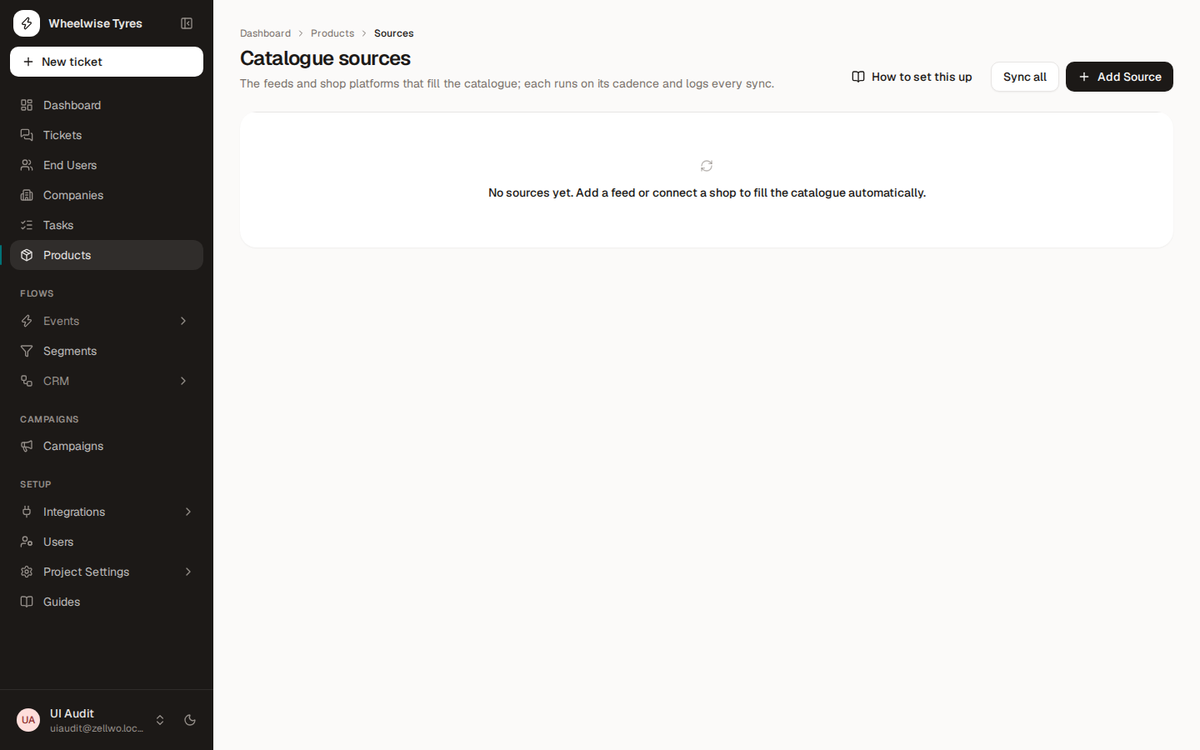
- Catalogue sources: a Google Shopping feed, CSV or JSON, Shopify or WooCommerce, synced into the products the assistant answers from.
- Guides: step-by-step walkthroughs with screenshots for each source type and for campaigns.